help
The studio is where images become line art: the left pane feeds and tunes the image, the middle shows the render, the right pane manages pens and exports. Every control in the app has a tooltip — hover (or long-press) it for a hint in place. This page is the longer version.
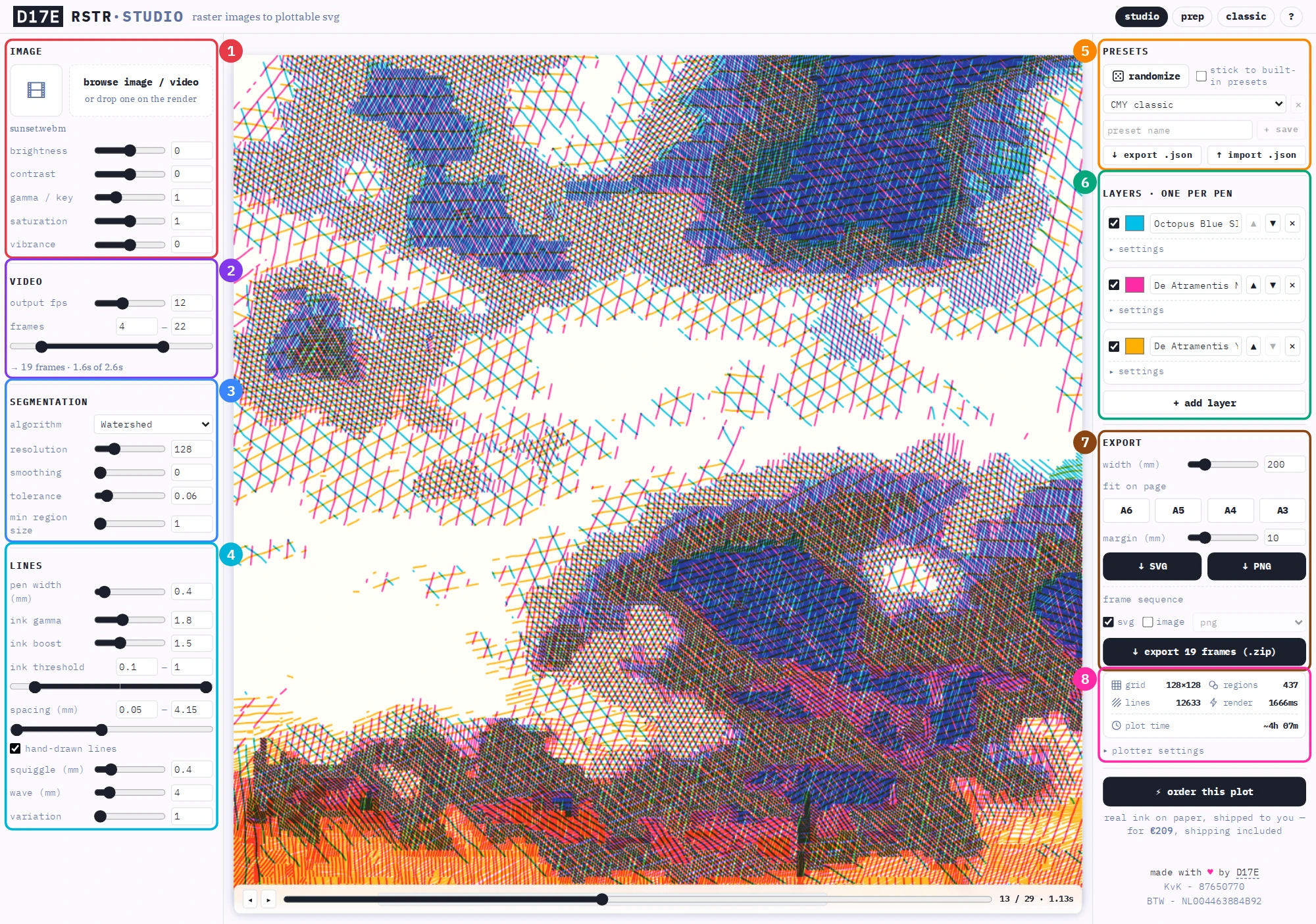
- 1 image — load a picture or video and tune it before tracing.
- 2 video — frame rate and export window, shown while a video is loaded.
- 3 segmentation — how the image is carved into tonal regions.
- 4 lines — pen width, how ink turns into line spacing, and the optional hand-drawn wobble.
- 5 presets — randomize everything, or save and share complete looks.
- 6 layers — one pen per layer: color, channel, hatch angles, overrides.
- 7 export — output width and the SVG, PNG and frame-sequence downloads.
- 8 stats — render numbers and the estimated plot time.
image
- browse / drop
- Load an image or video from your device — or drop it straight onto the render. Nothing is uploaded; all processing happens in your browser.
- input thumbnail
- Hold it down to peek at the input with the adjustments below applied.
- brightness / contrast
- Brighten or darken the image, and push contrast around mid grey, before segmentation.
- gamma / key
- Midtone curve — above 1 lifts the midtones, below 1 keys them down.
- saturation
- Uniform color saturation; 0 turns the input greyscale.
- vibrance
- Saturation boost weighted towards muted colors, so it won't blow out what's already vivid.
video
- supported formats
- Whatever your browser can decode — MP4 (H.264) and WebM play everywhere. HEVC (H.265)
videos, like the .mov recordings phones make, don't decode in many browsers; the studio will
tell you when that happens. Convert those to MP4 (H.264) first — QuickTime's export, HandBrake, or
ffmpeg -i input.mov -c:v libx264 -pix_fmt yuv420p output.mp4— and load the result. - output fps
- Frame rate the video is sampled at — fewer frames per second means fewer, smaller files.
- frames
- The exported frame window (first – last). The timeline over the render shades this range; scrub it or step frame by frame to preview any moment with the current settings.
- frame sequence export
- Renders every frame in the window and downloads one zip — plottable SVGs, images (png, jpeg or webp with quality and scale controls), or both.
segmentation
Segmentation carves the image into regions of similar tone — the shapes the lines will fill.
- algorithm
- Watershed follows tonal basins, posterize bands intensities, k-means clusters them, and SLIC carves compact superpixels.
- resolution
- Grid resolution the image is sampled at — more cells, more detail, slower renders.
- smoothing
- Blur passes before segmentation — higher means fewer, larger regions.
- superpixel size / compactness
- SLIC only: superpixel spacing in grid cells, and how strictly they stay grid-like versus following image detail.
- tolerance
- Maximum intensity difference for merging adjacent regions.
- min region size
- Regions with fewer cells get absorbed into a neighbour.
lines
- pen width (mm)
- Physical line width used for rendering and spacing math. Layers can override it.
- ink gamma
- Perceptual weight on ink intensity before it becomes line spacing.
- ink boost
- Coverage multiplier — above 1 pushes dark regions into overlapping lines.
- ink threshold
- The band of ink a region must fall in to be hatched. The low bound is a high-pass filter — regions holding less ink stay empty; the high bound is a low-pass filter — regions holding more ink stay empty too (leave it at 1 to keep every dark region). Narrow the band from both ends to isolate the midtones.
- spacing (mm)
- Nominal min–max line spacing. Each region lands somewhere in this range based on its ink: dense lines where the image is dark, sparse where it's light.
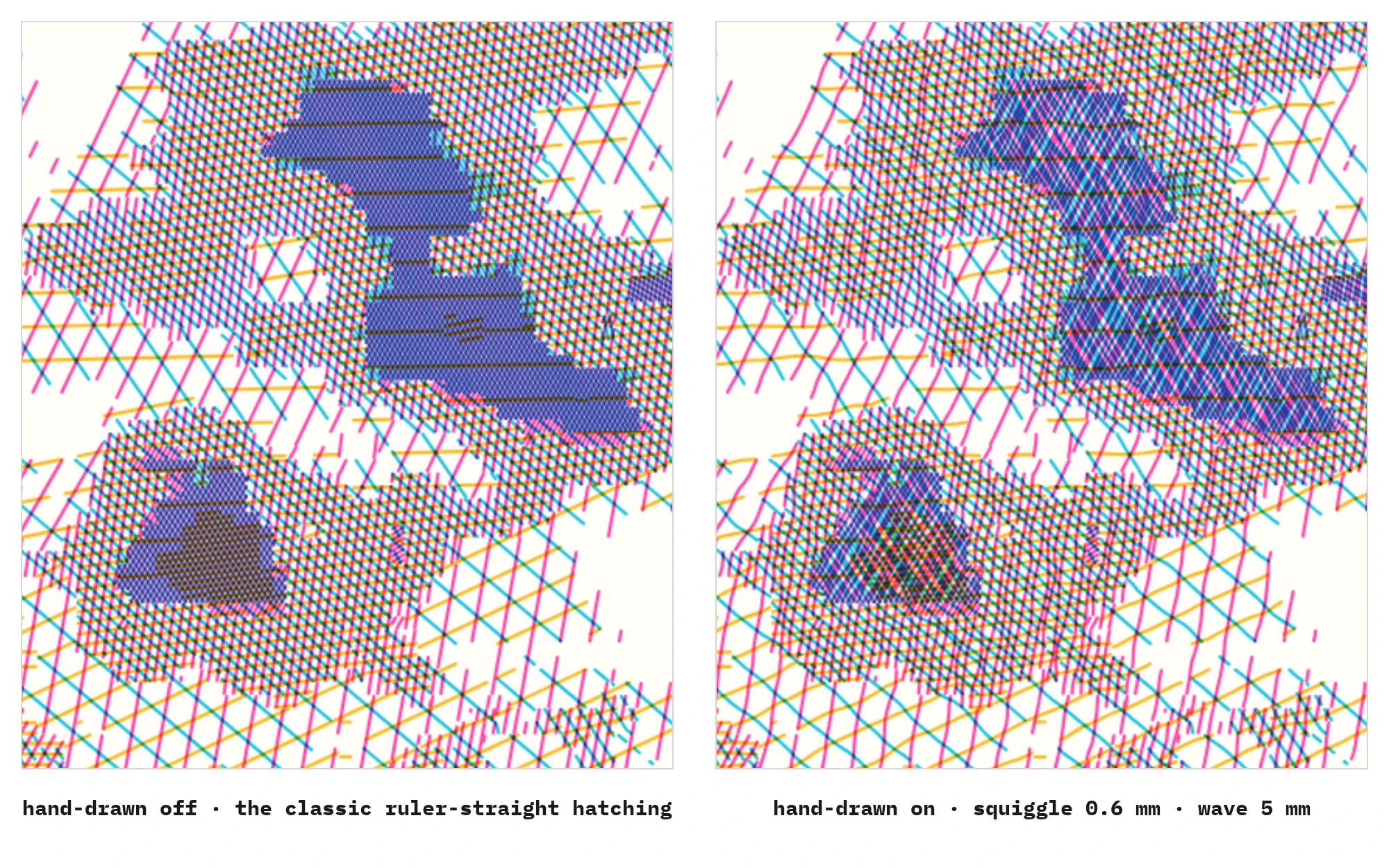
- hand-drawn lines
- Swap the perfectly straight hatch lines for organic, hand-drawn-looking ones. Off by default — and off means untouched: the classic ruler-straight output stays exactly as it was. When on, the same wobble flows through everything consistently — preview, SVG and PNG exports, frame sequences and the plot-time estimate (squiggly lines are longer, so plots take a bit more time). The wobble is deterministic: the same settings always draw the same squiggles.
- squiggle (mm)
- How far a line may wander from perfectly straight — the squiggliness. Lines keep their exact endpoints and short strokes stay steadier, so regions keep their shape.
- wave (mm)
- Distance between direction changes along a line — short makes a nervous scribble, long makes lazy waves.
- variation
- Rerolls the wobble pattern without changing its character.
layers — one per pen
- layer basics
- Each layer is one pen: pick its color, name it, toggle it, reorder with ▲▼ (layers draw top to bottom). The name becomes the layer label in the exported SVG.
- channel
- Which part of the image drives the layer's ink: cyan / magenta / yellow (the print channels), key / darkness, red / green / blue, or (inverted) luminance. "Match pen color" instead derives the channel from the layer's pen color.
- angle min / max
- Hatch direction range — every region picks its own angle within it, based on the region's shape, so one layer never looks mechanical.
- overrides
- Pen width, the threshold band (low / high), spacing, ink gamma and ink boost can be set per layer. Empty fields inherit the global lines values (shown as grey italics); "clear overrides" resets them all.
presets & randomize
- randomize
- The dice rolls all segmentation, lines and layer settings. "Stick to built-in presets" limits the roll to ink + pen combinations that physically exist, so the result stays plottable.
- presets
- Apply a built-in look, or save your current settings under a name — saved presets live in your browser. A fresh visit opens on a random built-in.
- export / import .json
- Move settings between browsers or share them as a small JSON file.
export
- width (mm)
- Physical output width — the height follows the image aspect.
- fit on page
- One tap sets the width so the art fits a standard sheet — A6, A5, A4 or A3 — within the margin below. The page is turned to match the art: wider-than-tall art gets a landscape sheet, taller art a portrait one, and anything square-ish defaults to portrait.
- margin (mm)
- The border kept clear on every edge of the sheet when fitting to a page. Defaults to 10mm.
- ↓ SVG
- A plottable SVG with one layer group per pen, ready for plotter software.
- ↓ PNG
- The current render as an image — for screens, sharing and regular printing.
- ⚡ order this plot
- No plotter? I'll plot it for you — real pens on paper, shipped flat-packed with tracking, shipping included in the price. Orders are limited to the inks in the built-in presets and sizes up to A3; the order dialog tells you if a design needs adjusting. Only the exported SVG — the lines to draw — is sent with your order, never your image, and it's used solely to produce your plot.
stats & plot time
- grid / regions / lines / render
- The sampling grid size, how many tonal regions segmentation found, how many hatch lines were drawn, and how long your browser needed to compute the render.
- plot time
- Estimated plotting time on an AxiDraw-style machine (saxi's motion model): drawing, travel and pen lifts — hover it for the per-pen breakdown.
- plotter settings
- The motion profile behind that estimate: pen-up/-down speeds and accelerations, cornering, pen lift/drop pauses and the join radius (lines closer than this are drawn without lifting the pen). Match it to your machine, or reset to saxi's defaults.
prep — /prep
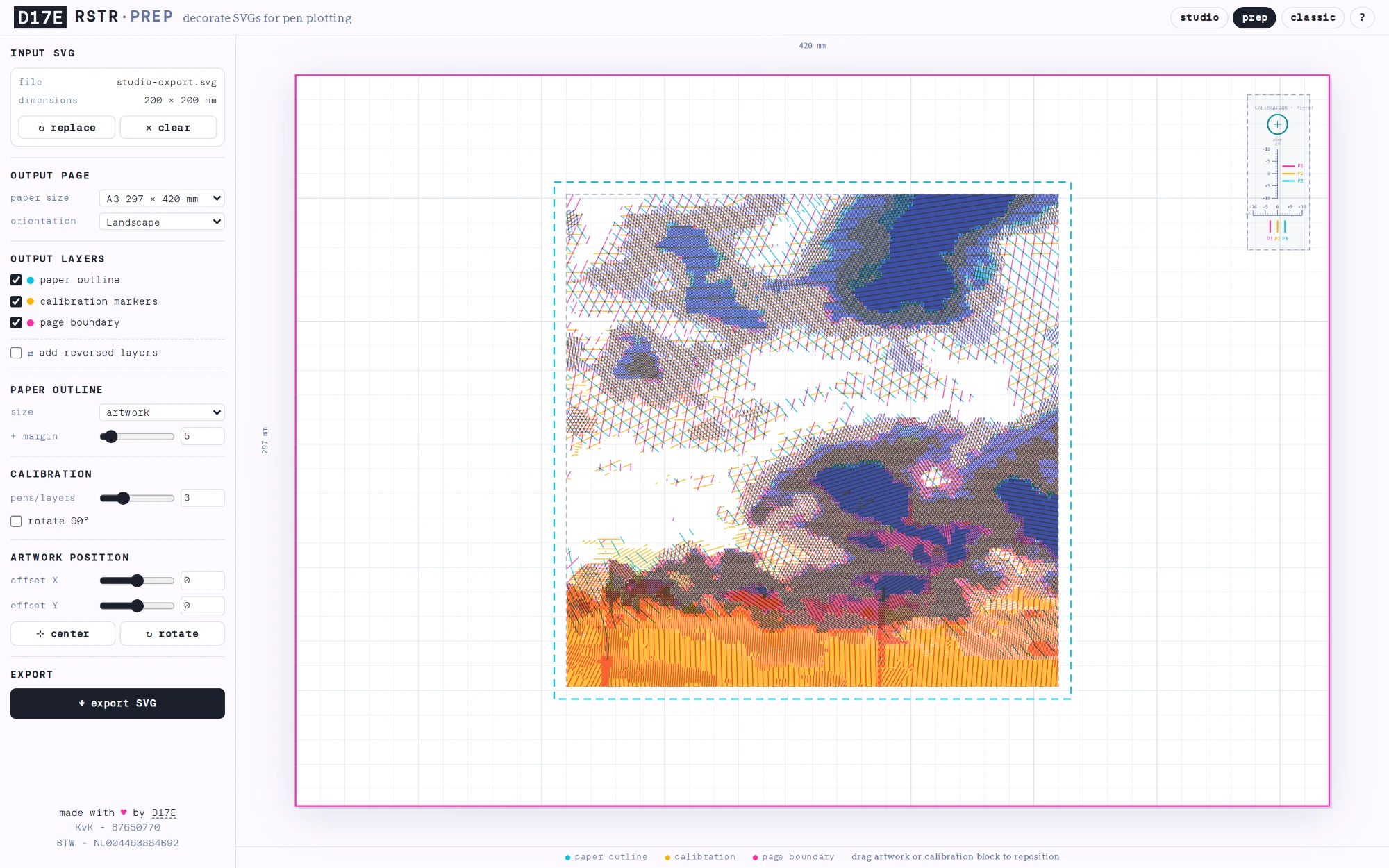
The plot prep tool takes an exported SVG and dresses it for the machine.
- output page
- Pick the page size and orientation the plotter will see; drag the artwork (or use the offsets) to place it.
- paper outline
- A rectangle marking where to place the physical paper — sized to the artwork or a fixed format, plus margin.
- calibration markers
- Rulers, a verify circle and one line pair per pen, so multi-pen plots line up. Drag the block anywhere.
- page boundary
- A rectangle around the full output page.
- add reversed layers
- Duplicates every artwork layer with the same lines running in the opposite direction — each line gets plotted twice for denser ink. Works on the studio's hand-drawn wobbly lines too: every squiggle is retraced point for point, just backwards.
- export SVG
- Downloads the decorated SVG with everything on its own (Inkscape-compatible) layer.
classic — /classic
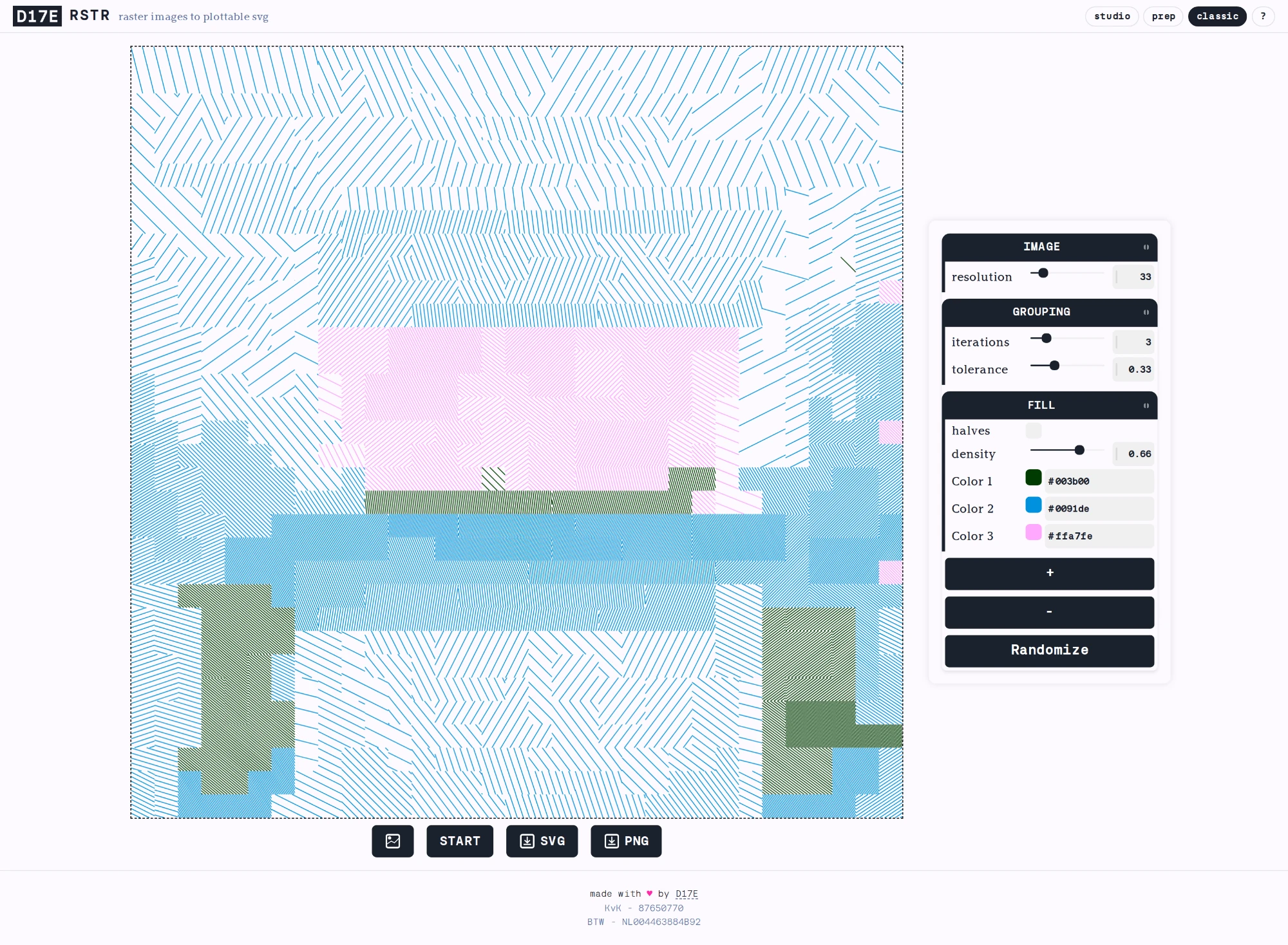
The original RSTR, kept around for nostalgia (and because it still makes nice plots). One image, one layer, multiple pens. The algorithm that started it all.
good to know
- private by design
- Images, videos and settings never leave your device. The one deliberate exception: ordering a plot sends the exported SVG — the drawn lines, never your image — along with your order, and it's used solely to produce that plot.
- works offline
- RSTR is an installable web app — once visited, it keeps working without a connection.
- settings persistence
- Your settings are remembered in this browser from the moment you first edit them — until then, every visit rolls a fresh random preset.
- real ink colors
- The palettes behind the randomize button are sampled from real fountain-pen inks, so a random roll always lands on colors you can actually plot with. They're based on the ranges from De Atramentis, Octopus Fluids and Rohrer & Klingner.